Skill Sharing & Installation
1. Version Update
-
Version Check: Before using the skill sharing feature, ensure that your SingWork has been updated to the latest version
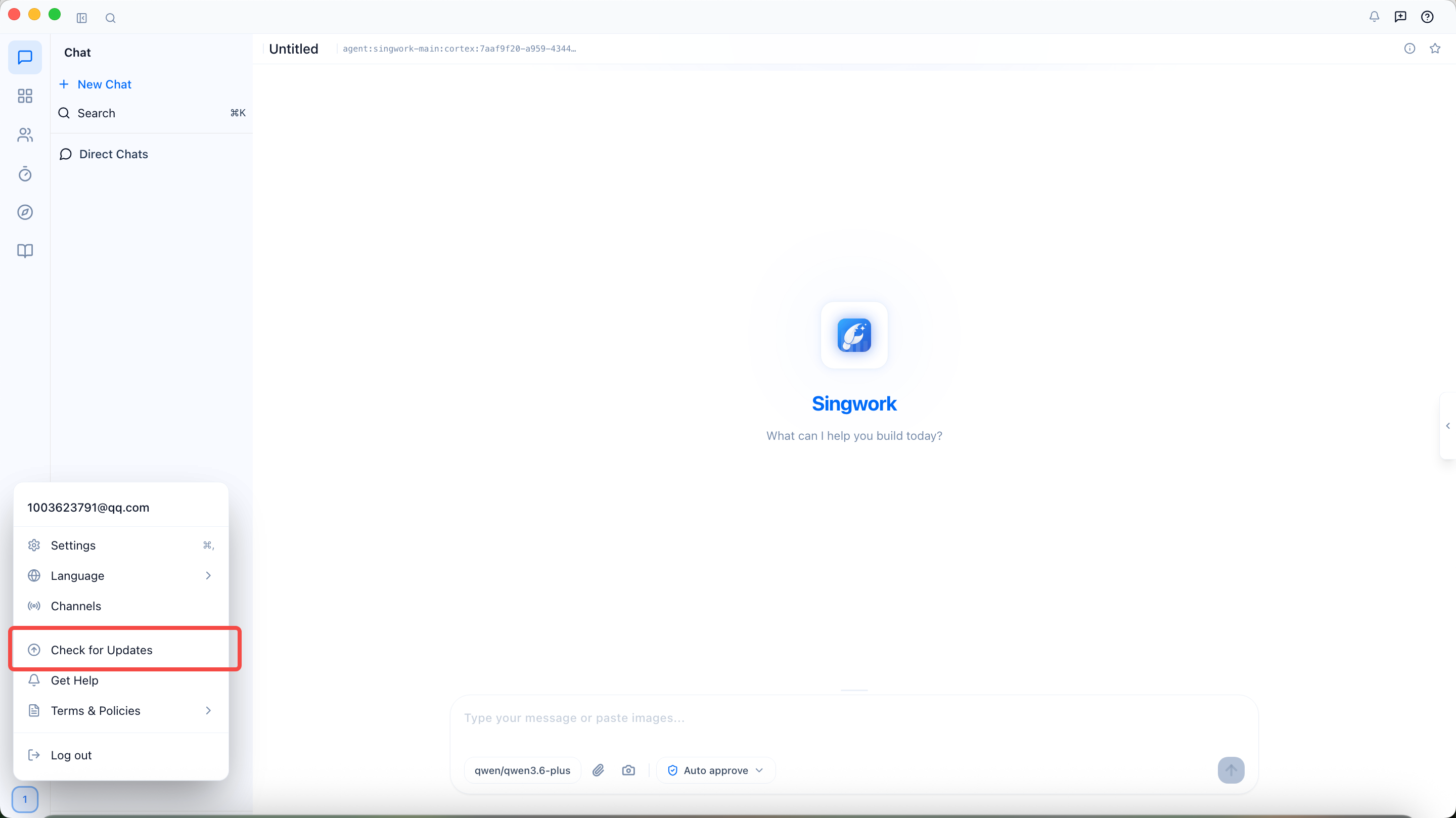
- Click the icon in the bottom left corner → Check for Updates
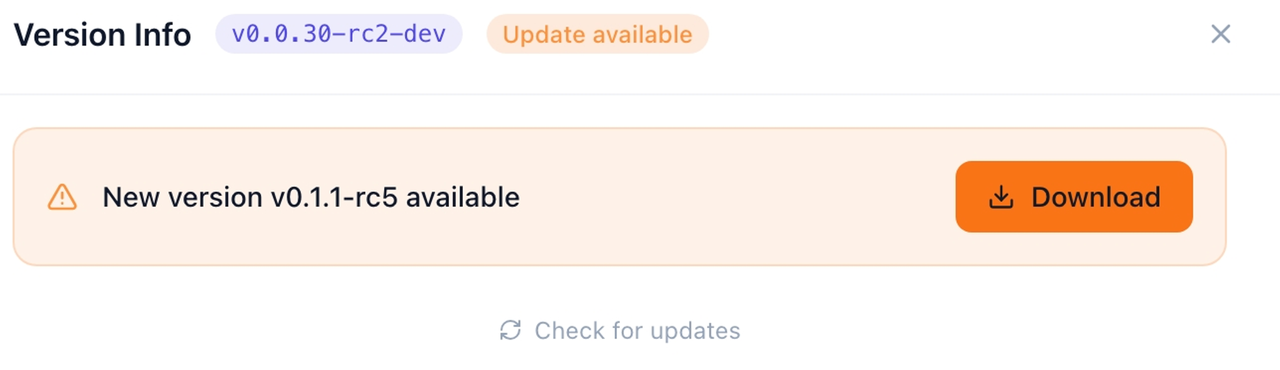
- Click Download Update, install the latest version, and restart (if already the latest version, please ignore)
- Click the icon in the bottom left corner → Check for Updates
2. Skill Sharing and Installation
Skill Search
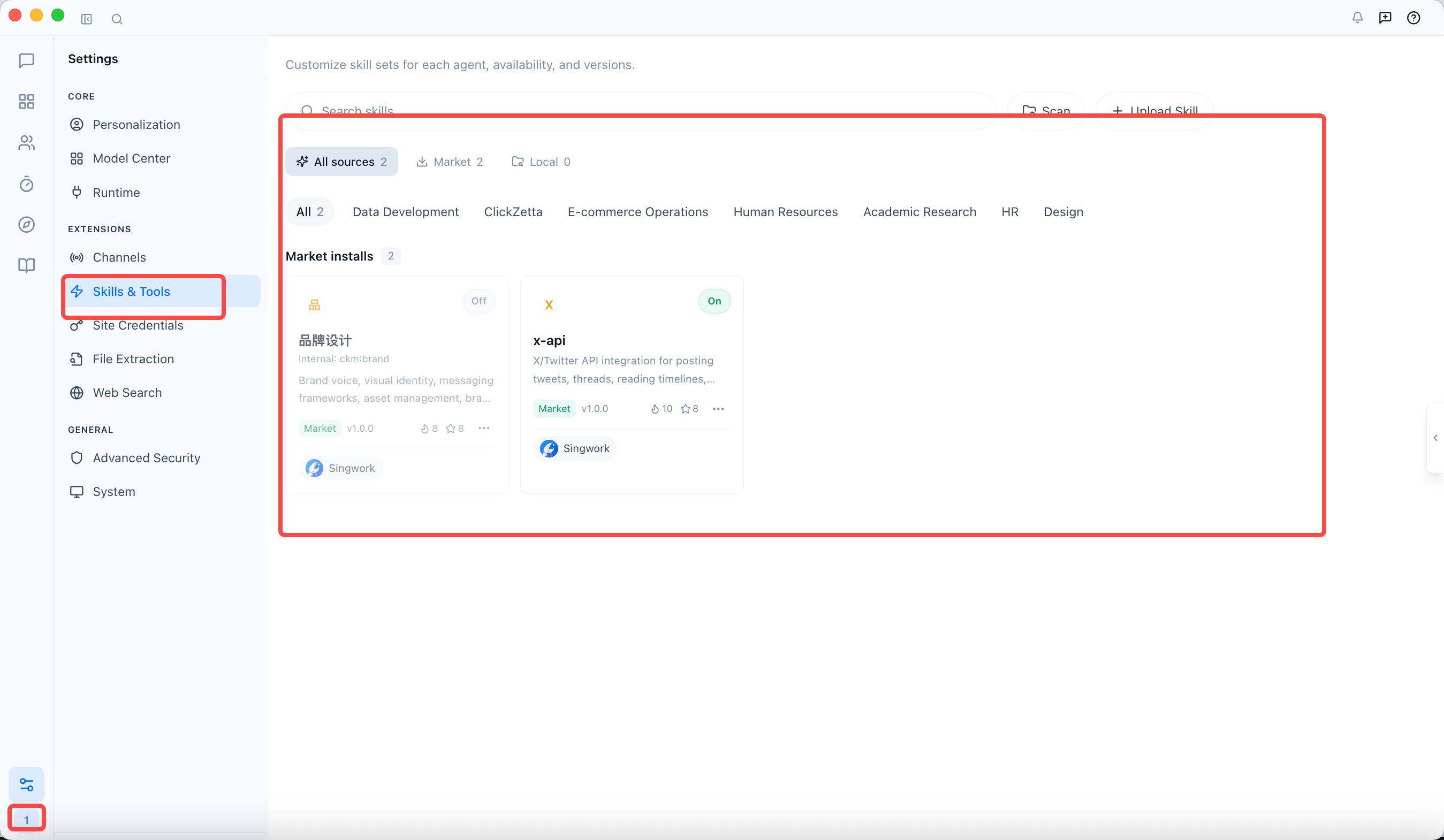
- Click the icon in the bottom left corner to open the Settings page, and find the skill you need to share from Skills & Tools
Skill Sharing
-
Click the
...in the bottom right corner of the selected skill and choose Share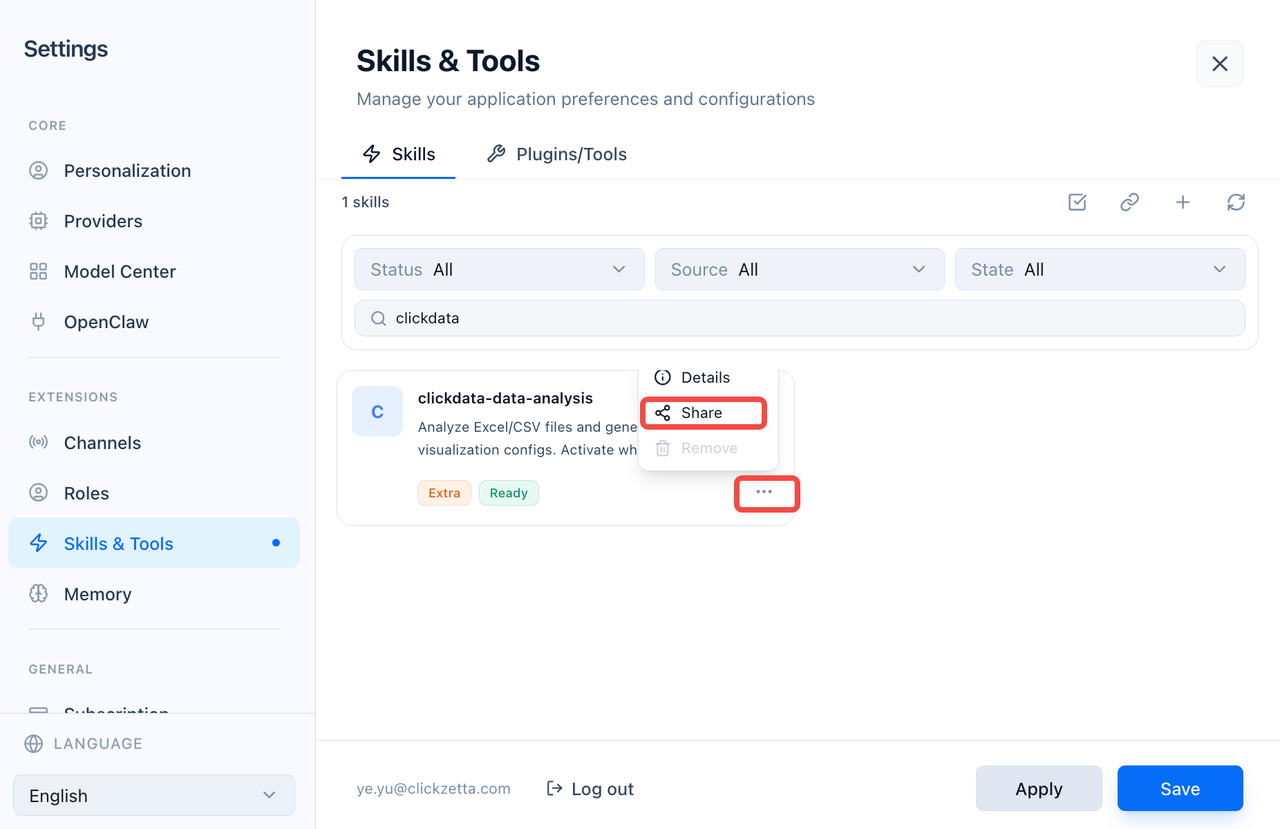
-
After selecting Visibility and Validity Period according to actual needs, click Confirm Sharing
- Validity Period: The available validity period of the sharing link
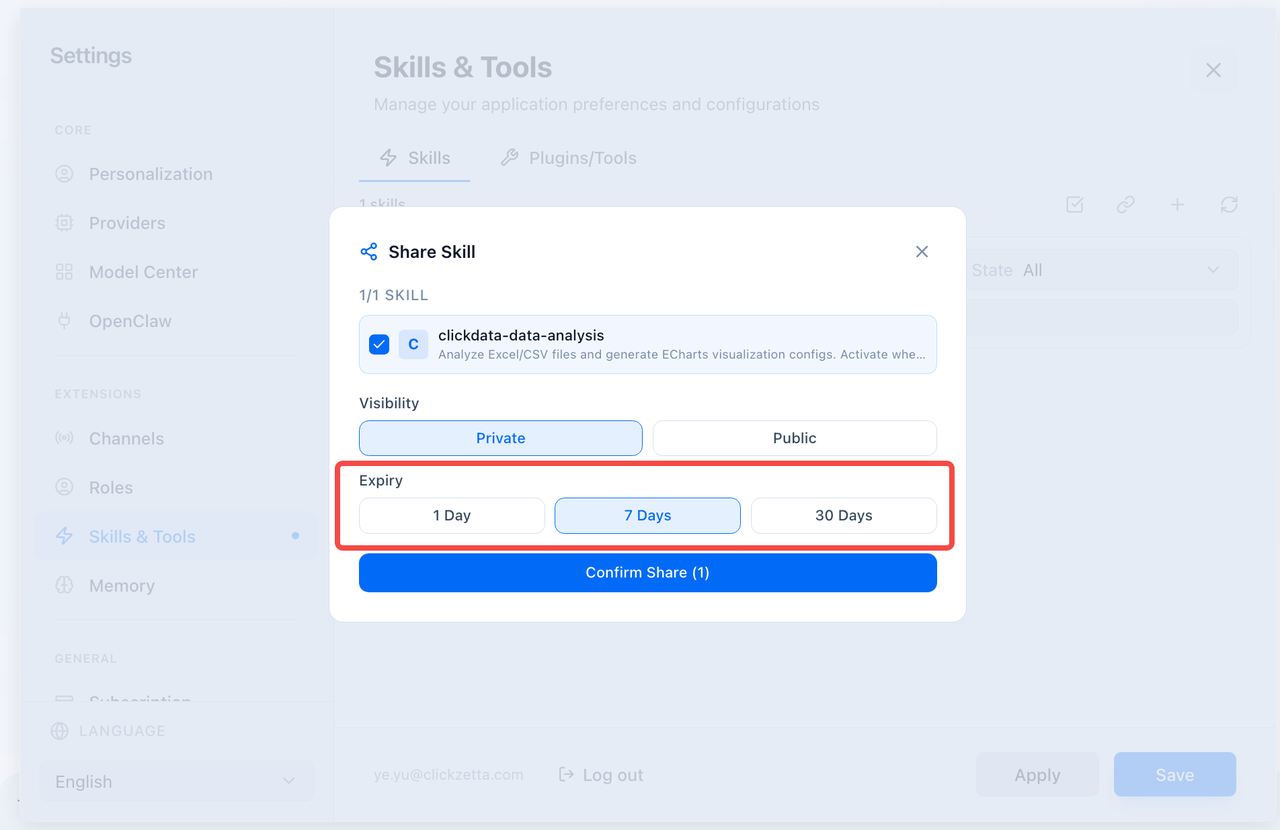
- Validity Period: The available validity period of the sharing link
-
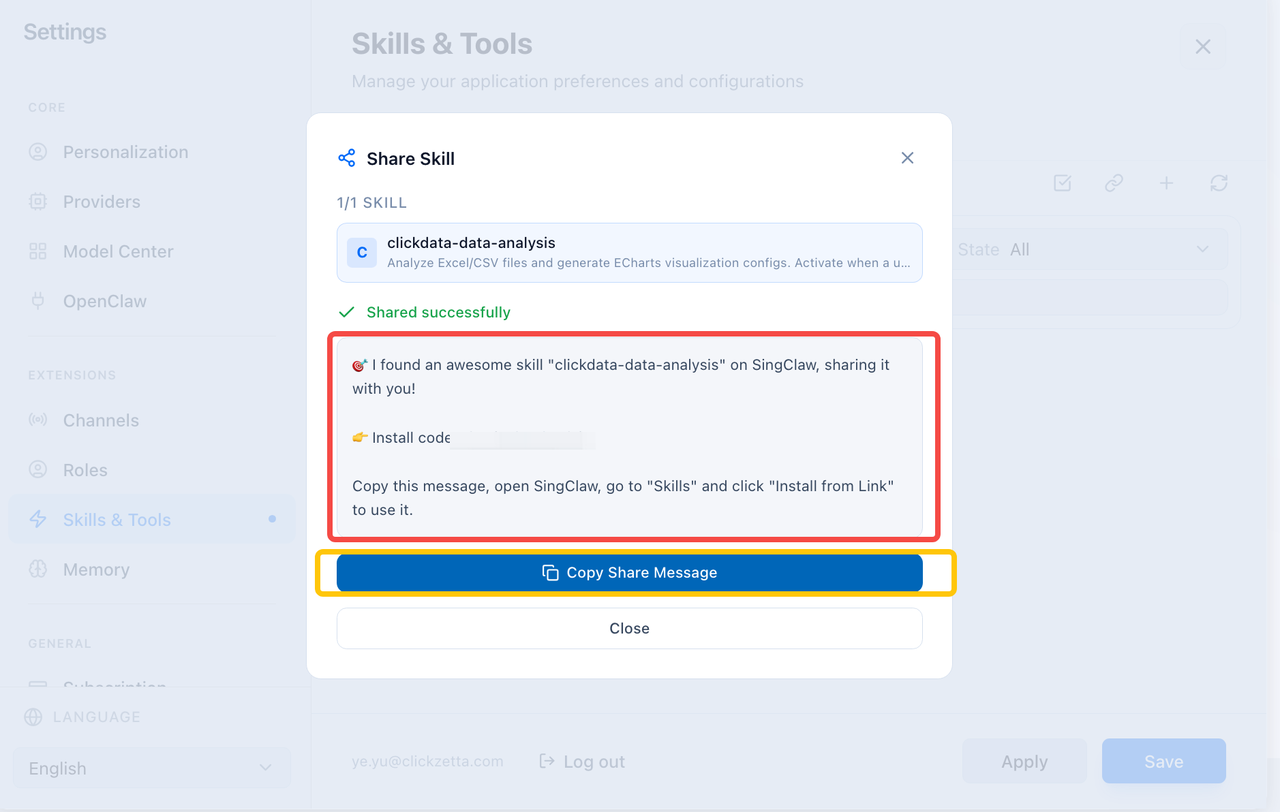
Copy the content and share it with other users
Skill Installation
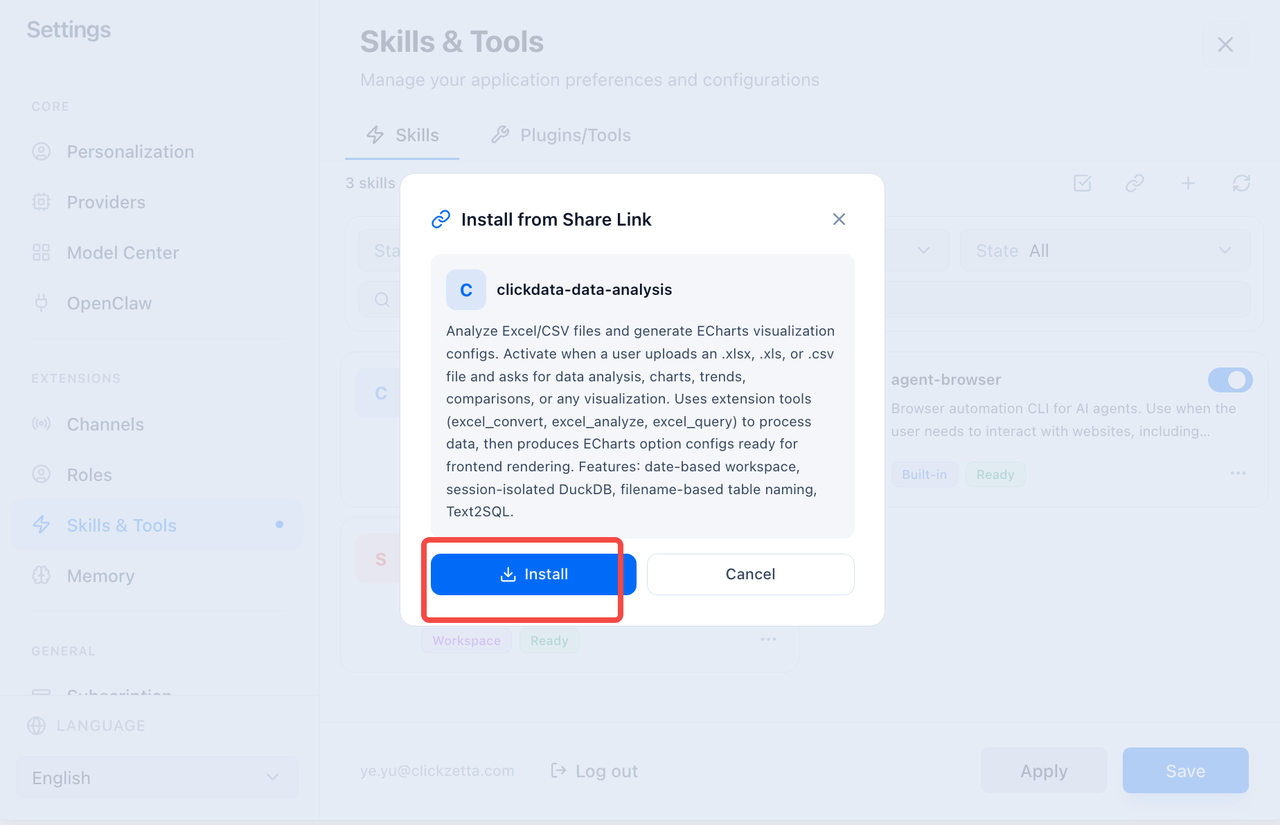
- Open the Skills/Tools page, select the link icon in the top right corner, and paste the copied content into the text field
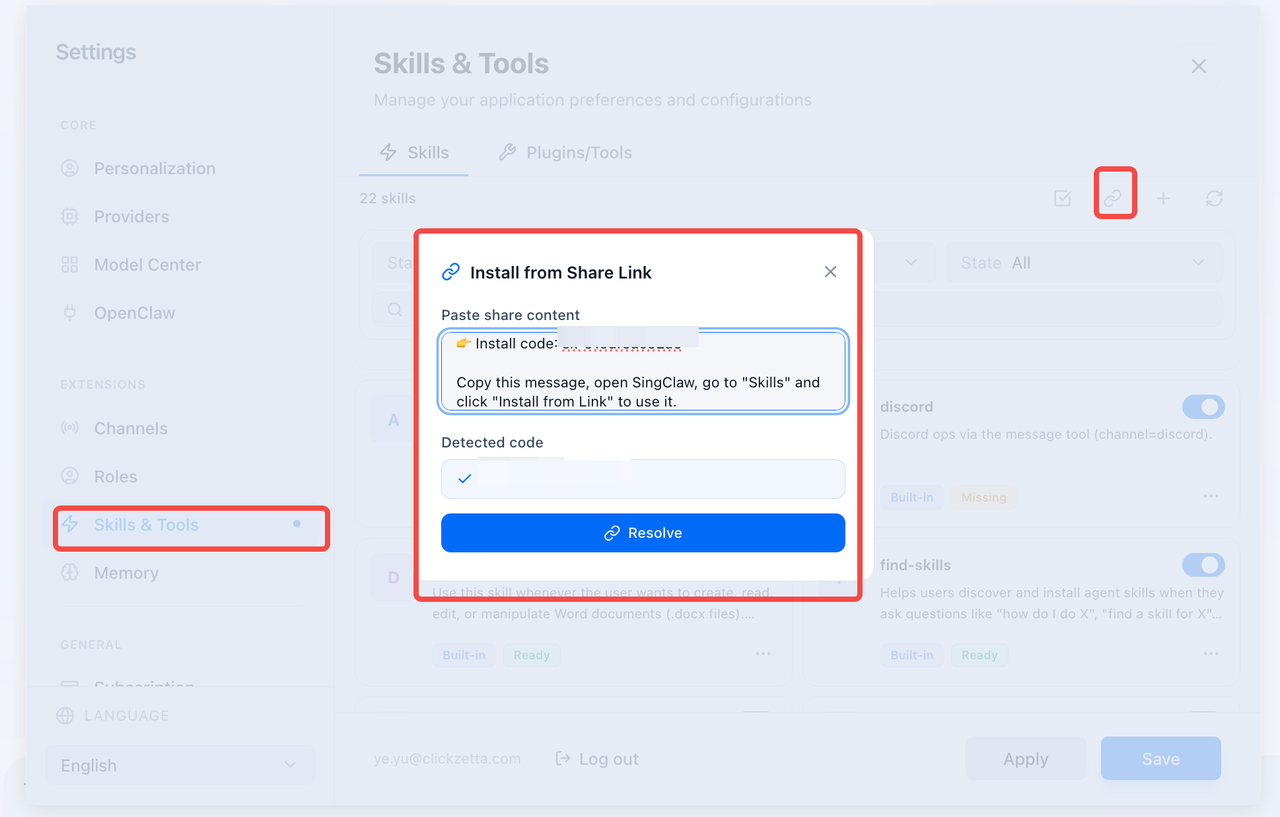
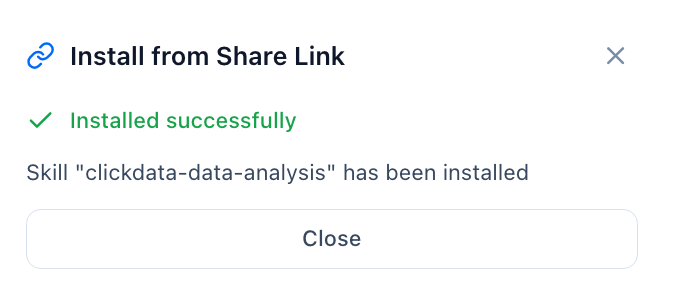
- After successful parsing, click Install
3. Skill Test
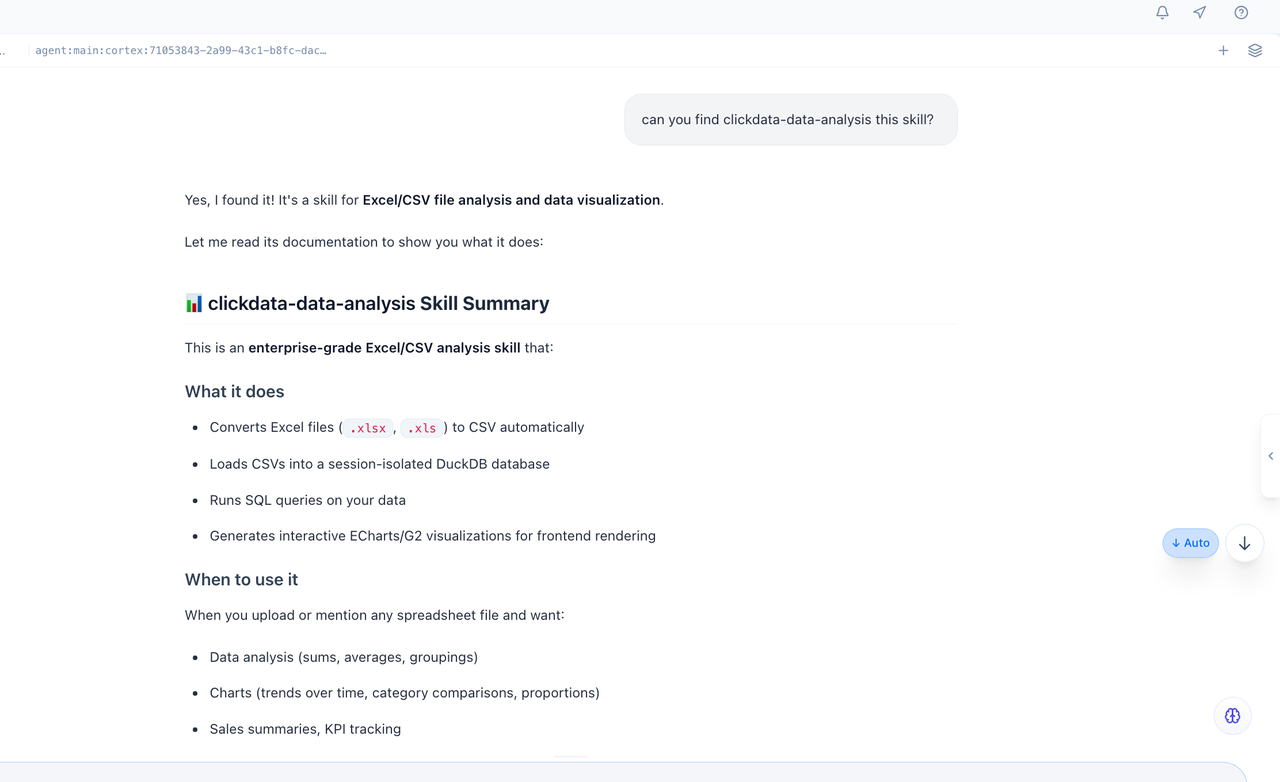
- Ask in the chat box whether SingWork has installed this skill; you can use it normally if confirmed as shown in the example.