
Note: When performing the corresponding operations via Web Intelligence, the user needs to remain logged in.
1. Introduction to Web Intelligence Features
If you repeat a series of time-consuming operations such as "opening websites, clicking buttons, filling out forms, turning pages, uploading images, downloading data, analyzing data" every day, then you can try the core feature of SingWork - Web Intelligence.
| Function Type | Applicable Scenarios | Operation Mode |
|---|---|---|
| Method 1: Real-time operation | One-time task, not worth recording a webflow specifically | Simply tell the AI what you want it to do, and it will figure it out on its ownFor example: help me check the rating of <Interstellar> on Douban |
| Method 2: Manually record flow | Tasks that need to be repeated multiple times | Manually perform the operation once yourself, let the system record it, and next time have the AI replay itFor example: Help me post a Rednote note every day |
| Method 3: Market download | The webflow is highly compatible with the required functions. | Open the square and find the option for the desired webflow, then download it |
2. Tutorial on Manually Recording a Flow
2.1 How to record a flow
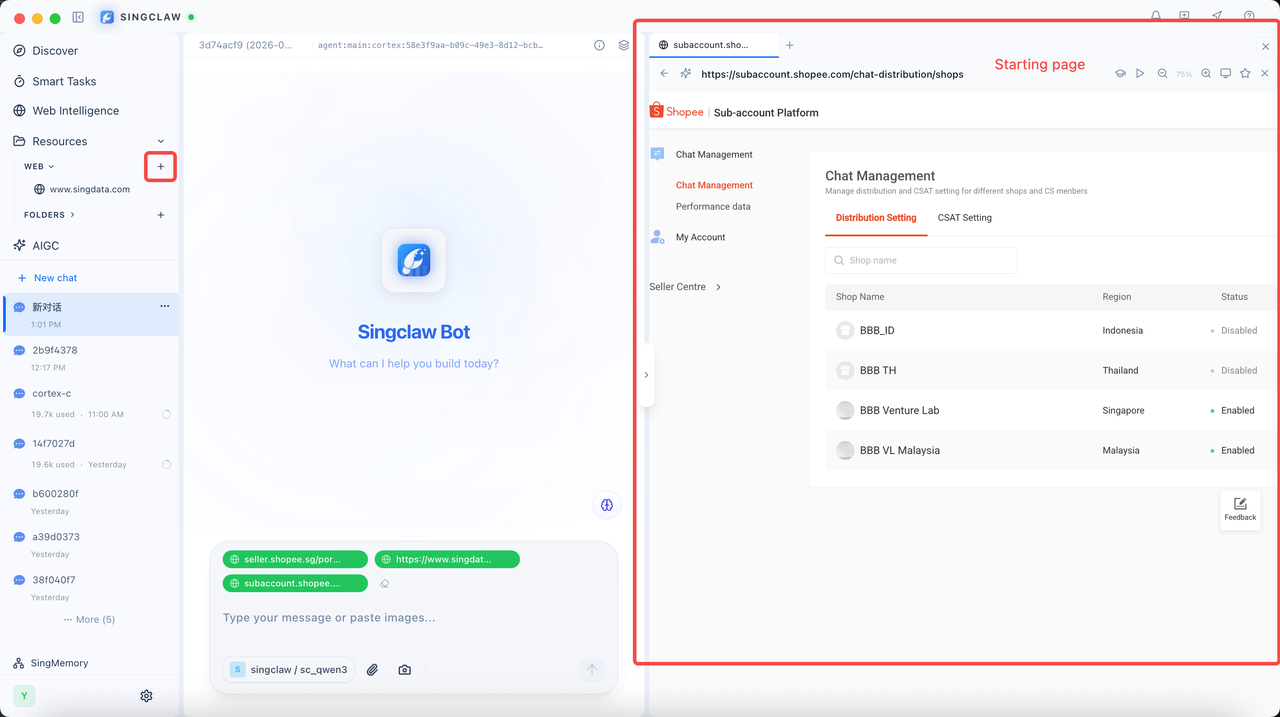
- Login Preparation : Click on the web link to open the browser, enter the URL and press Enter to open it, then return to the starting page after logging in
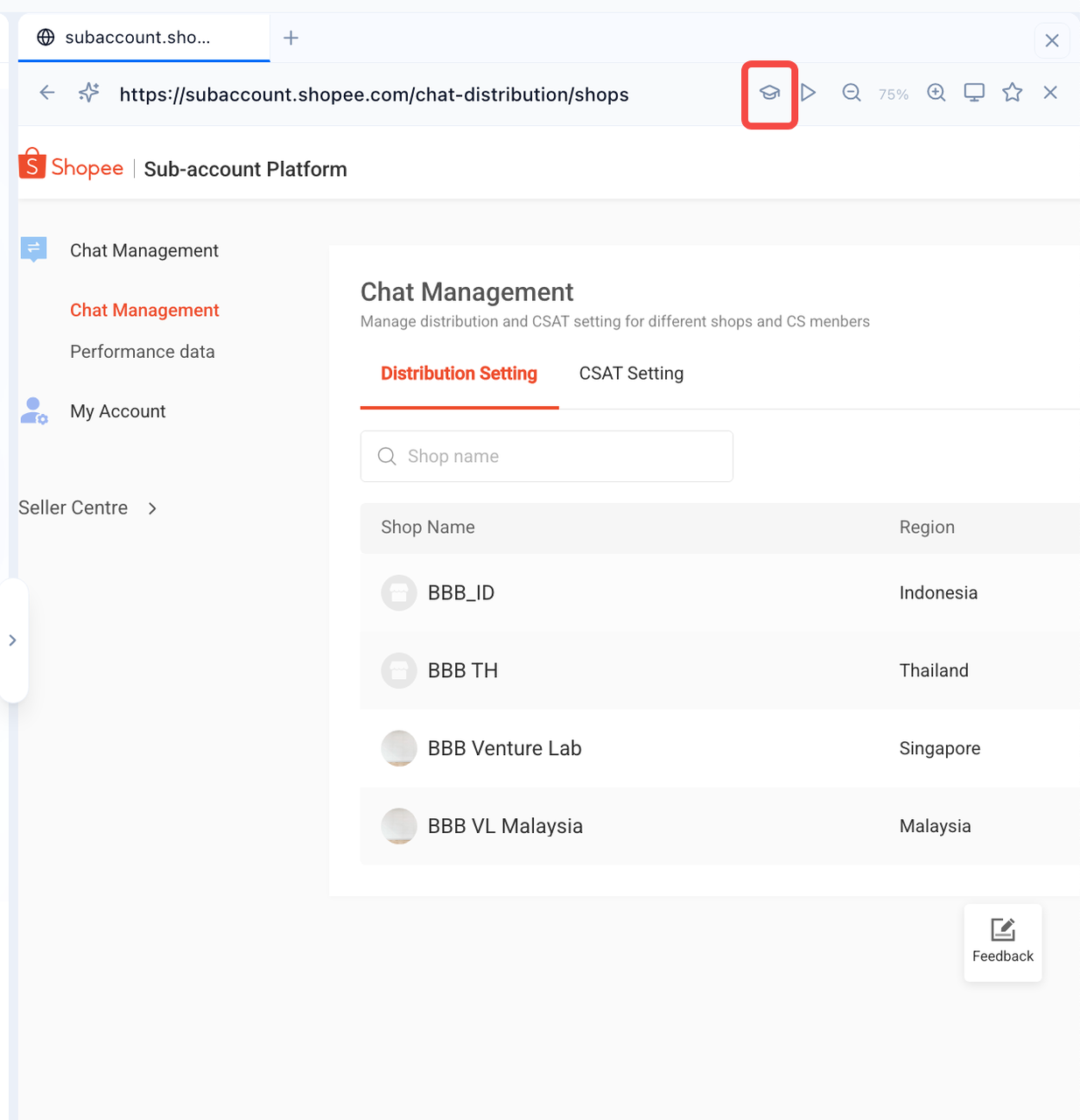
- Start Recording : Click the "Graduation Cap" button at the top of the webpage to start recording
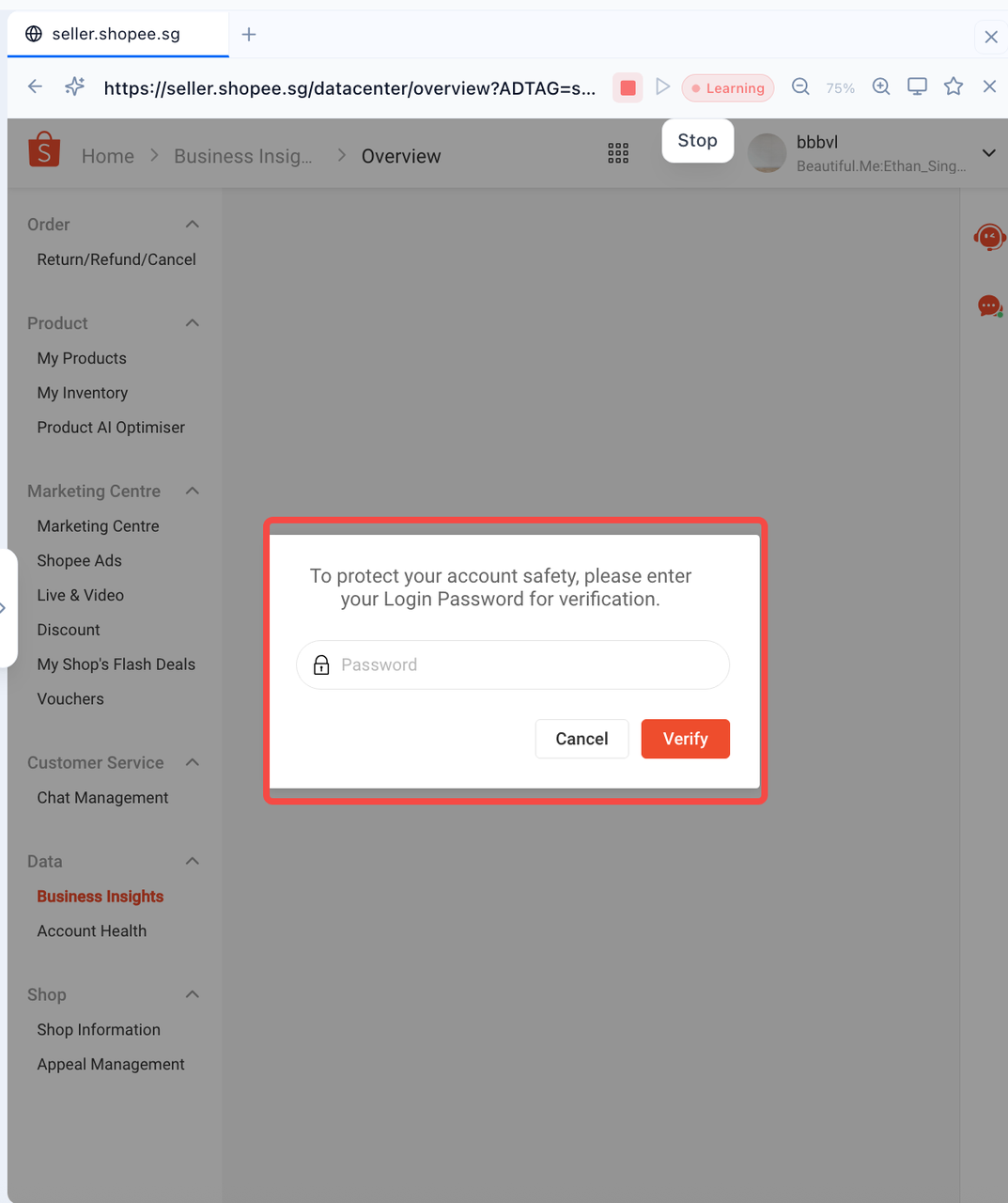
- Website routine operations: A series of daily workflow operations such as clicking, turning pages, scrolling, inputting, etc. Do the corresponding operations based on what you want the AI to learn (you may encounter a secondary verification step)
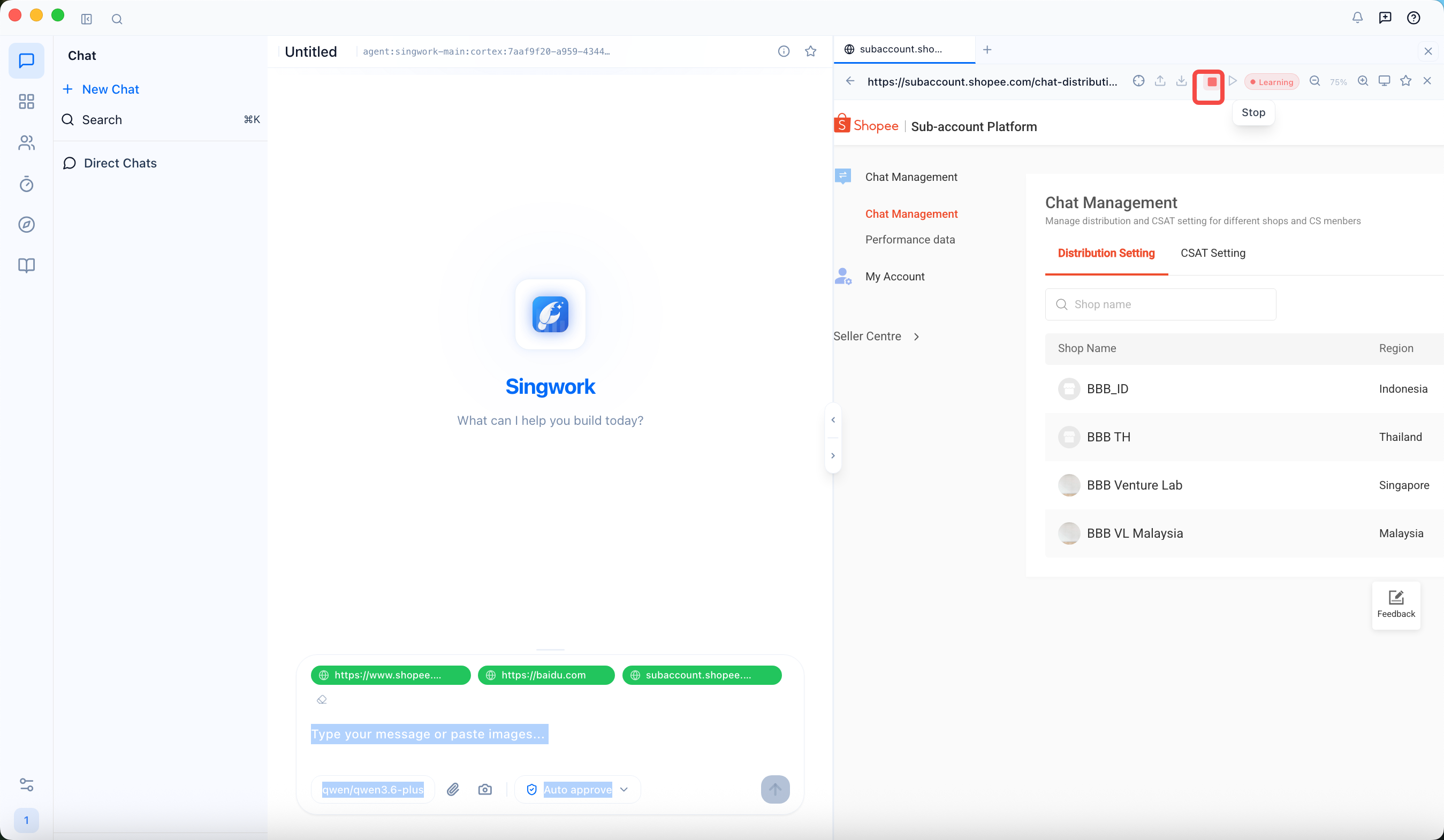
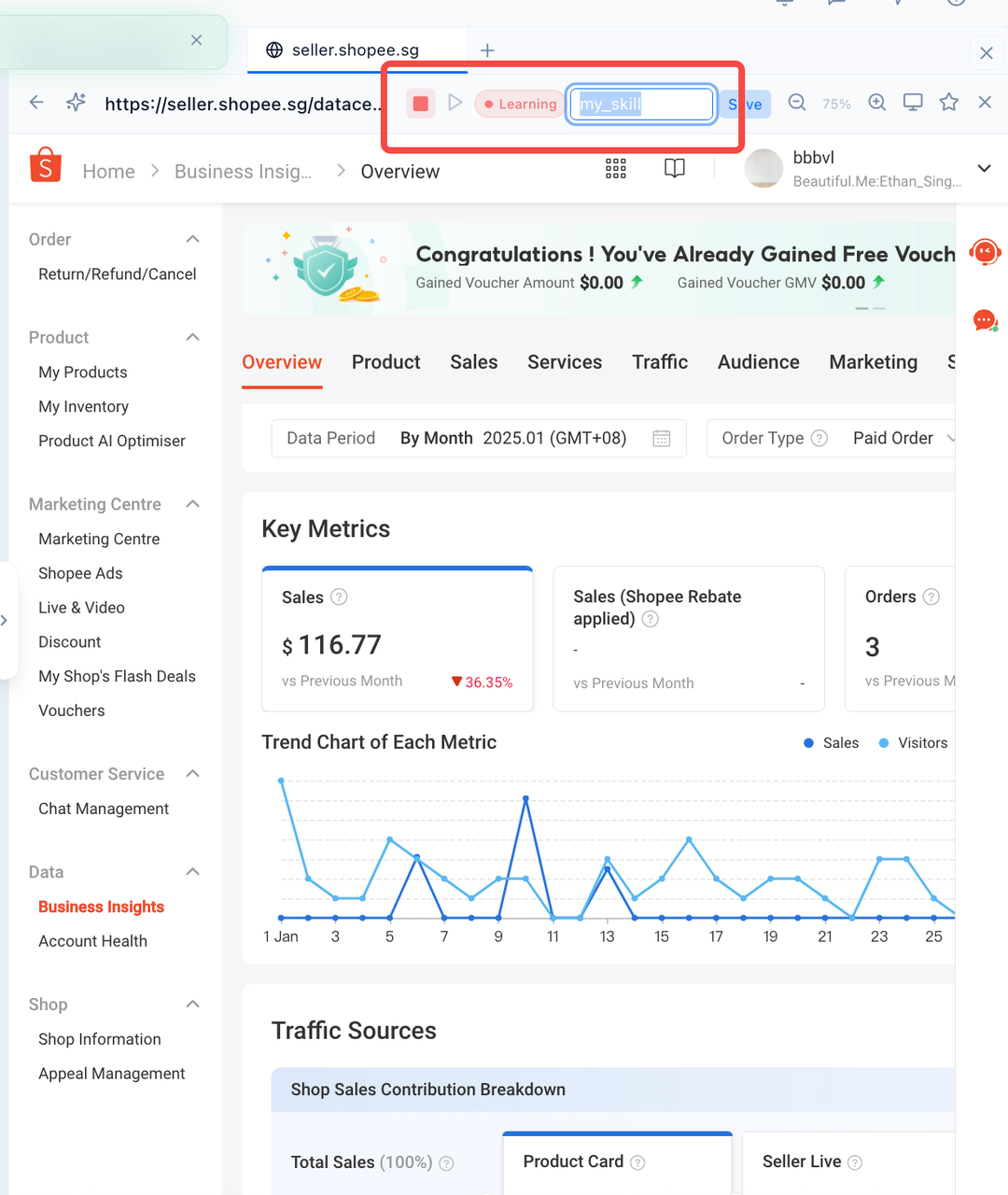
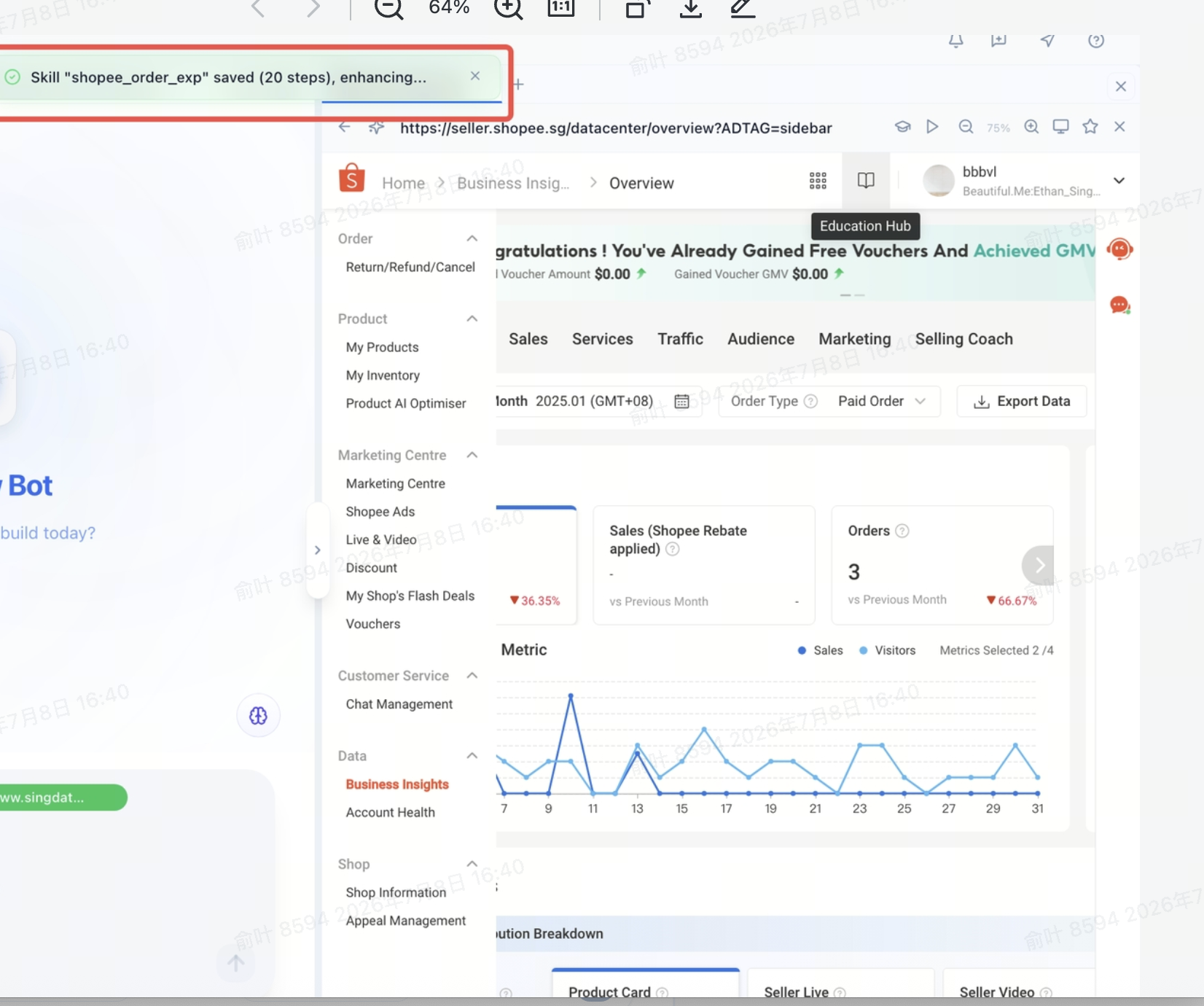
- Skill Saving: After the operation is completed, click the red recording button again to stop recording. The system will pop up an input box for you to name this flow. Seeing the prompt "Skill xxx saved (x steps)" indicates success
2. Flow Query and Usage
-
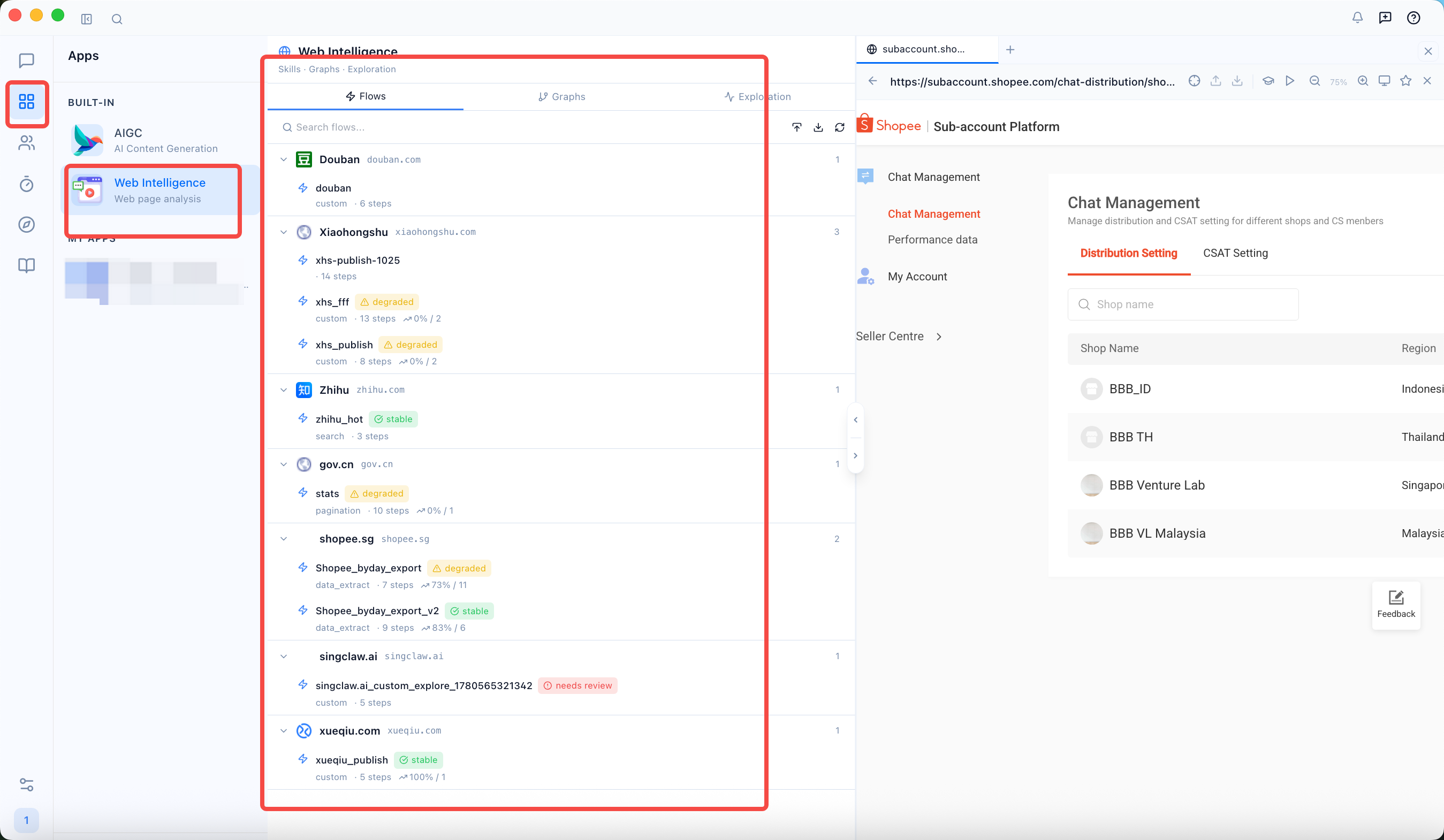
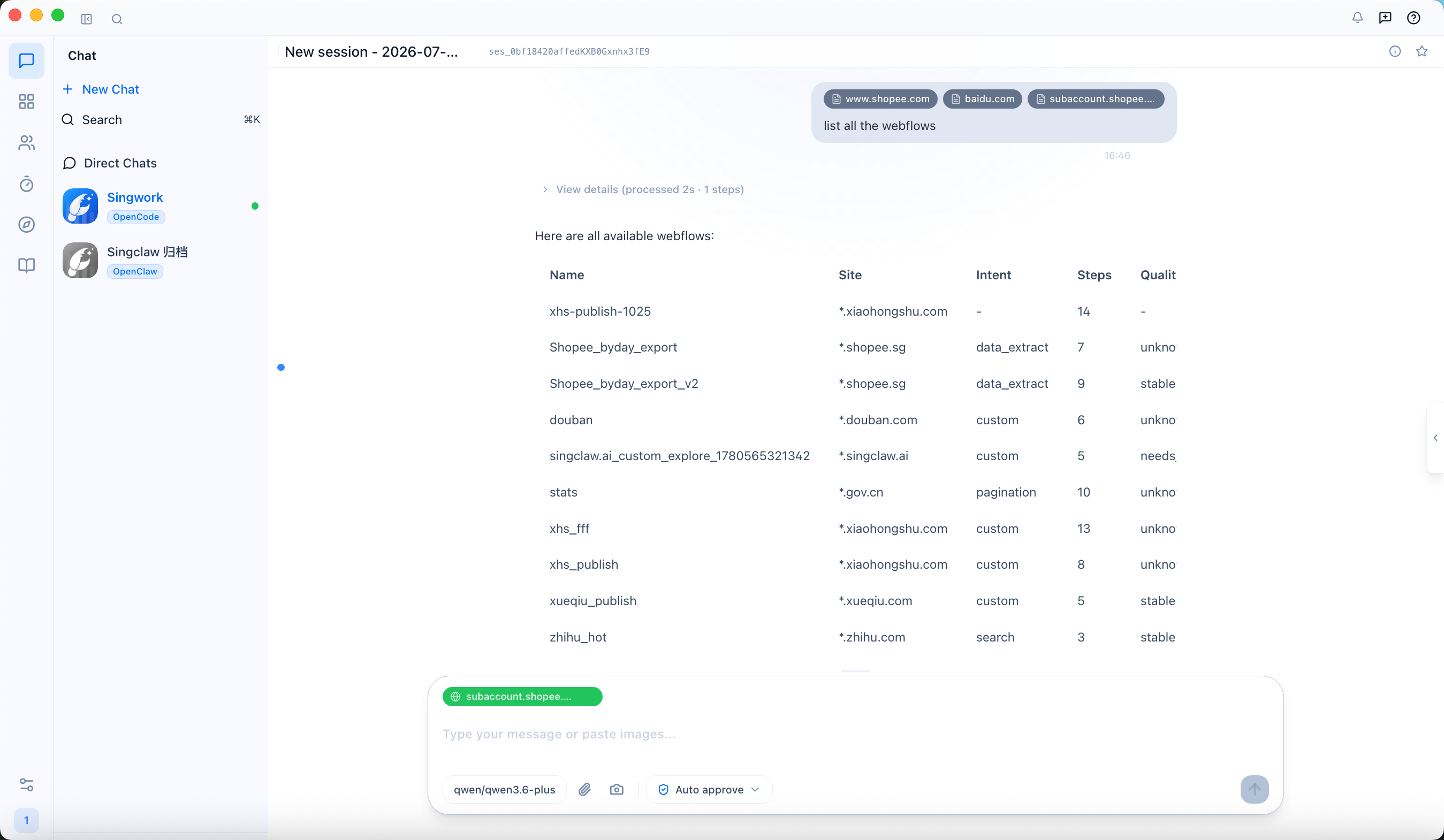
Flow Inquiry : Click Web Intelligence or directly ask singwork to list webflows
-
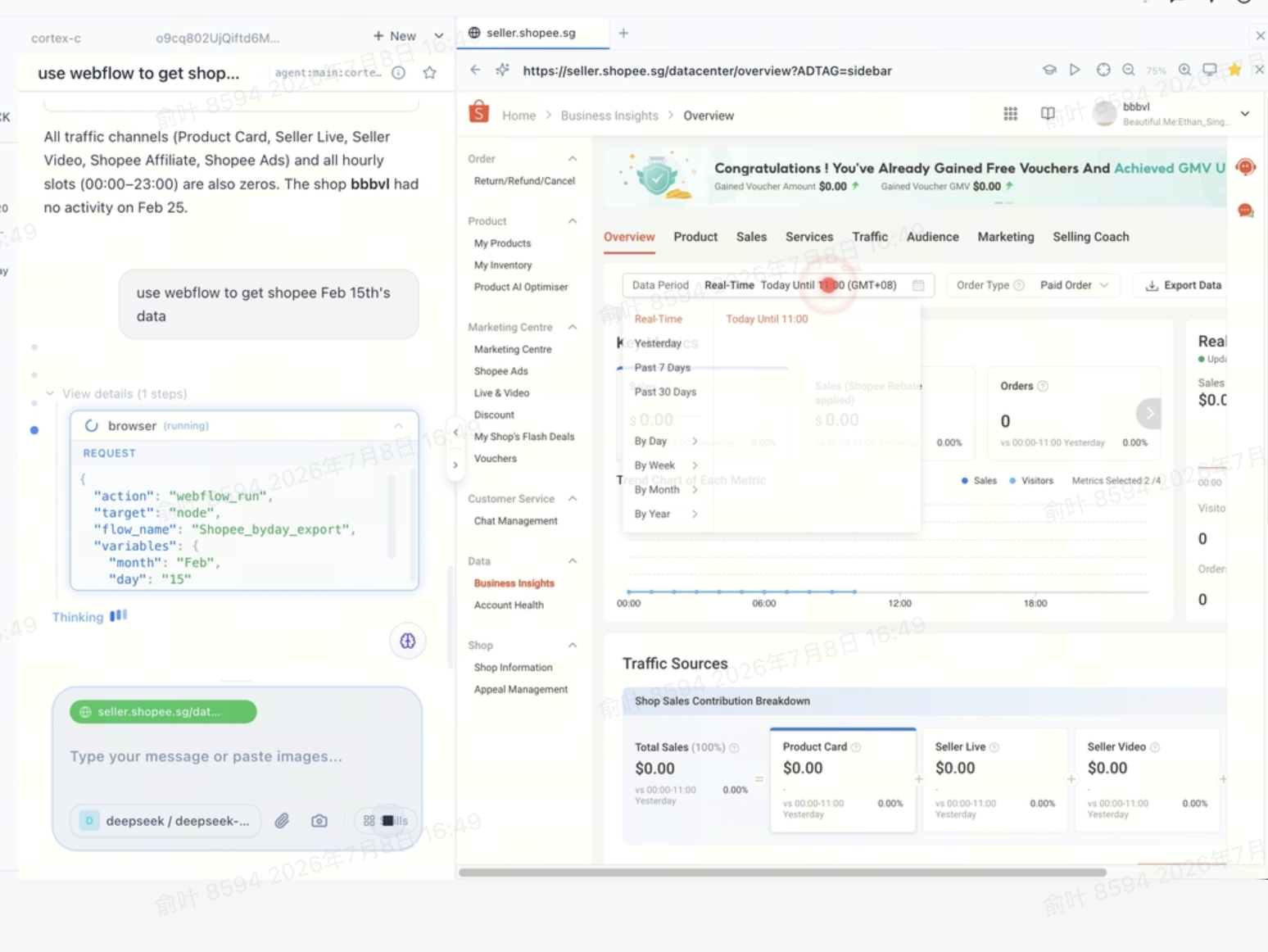
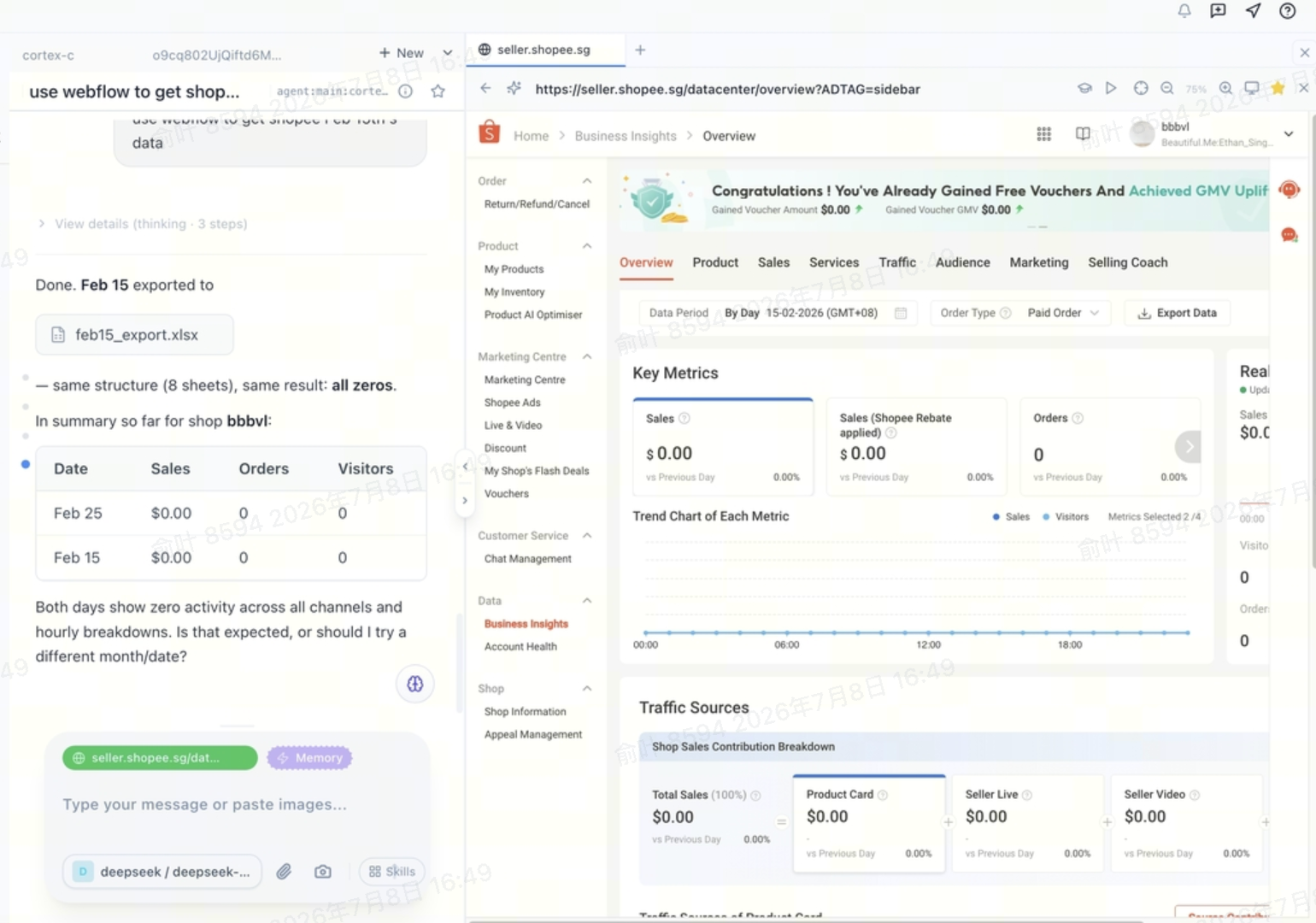
Flow Usage : Provide your requirements to singwork, and it will automatically execute by simulating the steps just taken.
3. Precautions
Not all websites are suitable: The system will automatically skip websites that require login to use, have strong anti-crawling mechanisms, or require payment
Quality varies: Automatically learned webflows come with aquality rating, categorized as `verified` (reliable) / `needs_review` (recommended for manual review) / `experimental` (experimental). AI will prioritize using verified ones
Can be disabled: If you don't want automatic background exploration, simply turn it off in the settings
4. What You Can See When the Agent Operates the Browser
| Action | What you see |
| Move the mouse | A Bezier curve that mimics the natural trajectory of a human hand |
| Click | The red circle spreads out at the click position |
| Input text | The input box is highlighted, and characters are typed in one by one (not pasted in instantly) |
| Scroll | The arrow in the scrolling direction flashes by |
| Jump to Page | The browser jumps normally |
If a step fails, the Agent will:
- Automatically retry up to 3 times (repositioning the element each time);
- If the retry still fails, then **fall back to synthetic click **(without simulating a real mouse, directly tell the browser to "click this element");
- Only report an error to you if it fails after all attempts.
5. Frequently Asked Questions
Q1. What should I do if AI always clicks on the wrong spot?
- Let AI wait** for the page to load** (add a sentence "Wait until the page is fully loaded before proceeding" in the conversation)
- If a particular fixed website keeps having issues, it is recommended to **manually record a Skill **(Method 2), as the recording path is more stable than AI's real-time exploration
Q2. After recording, it is found that one step is missing / one step is extra
- Delete this Skill and re-record it
- Or split the process into multiple small Skills and record them separately (e.g., first record "Open the Publishing Page", then record "Fill in the Form", and then record "Click Publish")
Q3. Skill interrupted halfway through
Possible causes:
- The network suddenly slowed down, and elements did not appear in time
- The website has been redesigned, and the previously recorded elements cannot be found
- An unexpected pop-up window (such as a verification code or login expiration) has appeared
Countermeasures :
- Retry if there is a network issue
- The website has been redesigned → Delete and re-record
- When a captcha appears, the system will pause and wait for you to manually handle it. After you resolve it, it will continue.
Q4. "Active web page tab not found" appears during recording
You need to open a webpage in the right panel first and then click the record button. If the right panel does not show at all, let the AI open any website (such as "Open baidu.com") in the dialogue first, and then record it when it appears.
Q5. How can I let others use my Skill?
Skill is saved in ~/.singwork/web-flows/<skill_name>.yaml. Just send this file to someone else and ask them to place it in the same directory on their computer.
6. What Not to Do
❌ Do not record passwords/verification codes : These will not be used during recording. If you need to log in, log in first and then start recording
❌ Do not record processes involving financial operations :(transfer, order payment), as having AI automatically replay them poses risks. It is recommended to manually intervene in such steps
❌ Don't cram too many steps into a single Skill (>30 steps): Breaking it into multiple smaller Skills makes it easier to maintain and combine
❌ Don't expect AI to handle graphical captchas: Currently, it will pause and let you solve it
Appendix: Skill File Storage Location
- macOS / Linux:
~/.singwork/web-flows/ - Windows:
C:\Users\<your username>\.singwork\web-flows\ - Windows:
C:\Users\<your username>\.singwork\web-flows\
Each .yaml file inside is a Skill. The file name is the Skill name (with the .yaml suffix removed).